Software · desktop companion · Windows
Jarvis Desk
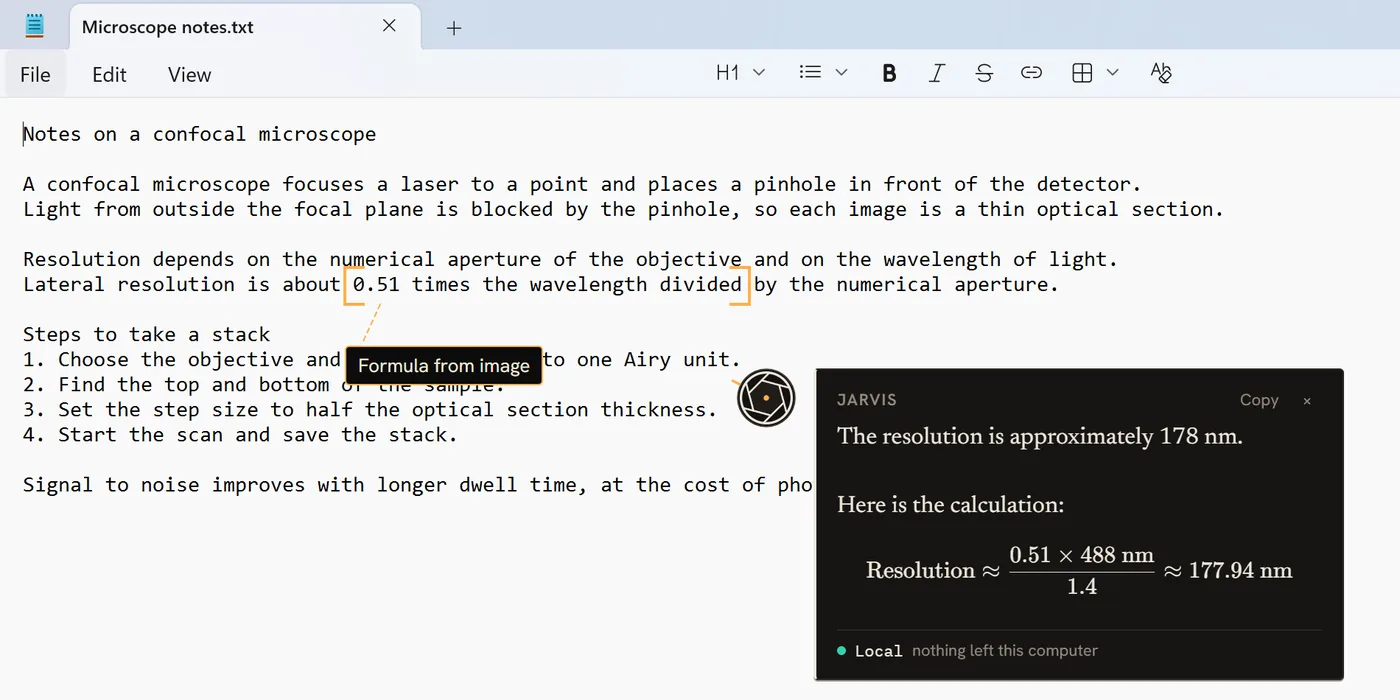
A small companion that lives beside my cursor. It reads the window I'm looking at, points at what I need, draws its answers next to the text and talks back in a British voice. Private things stay on the laptop.
Part of Work · What I'm doing
Most assistants live in their own window. You copy the question over and read the answer somewhere else. I wanted one that comes to the page I'm already reading.
Jarvis Desk sits next to the mouse pointer on Windows. I ask by voice or by typing, and it answers in a small bubble. When a picture says it better, it draws one.
01 · What it does
It points, draws and remembers
Pointing and walkthroughs
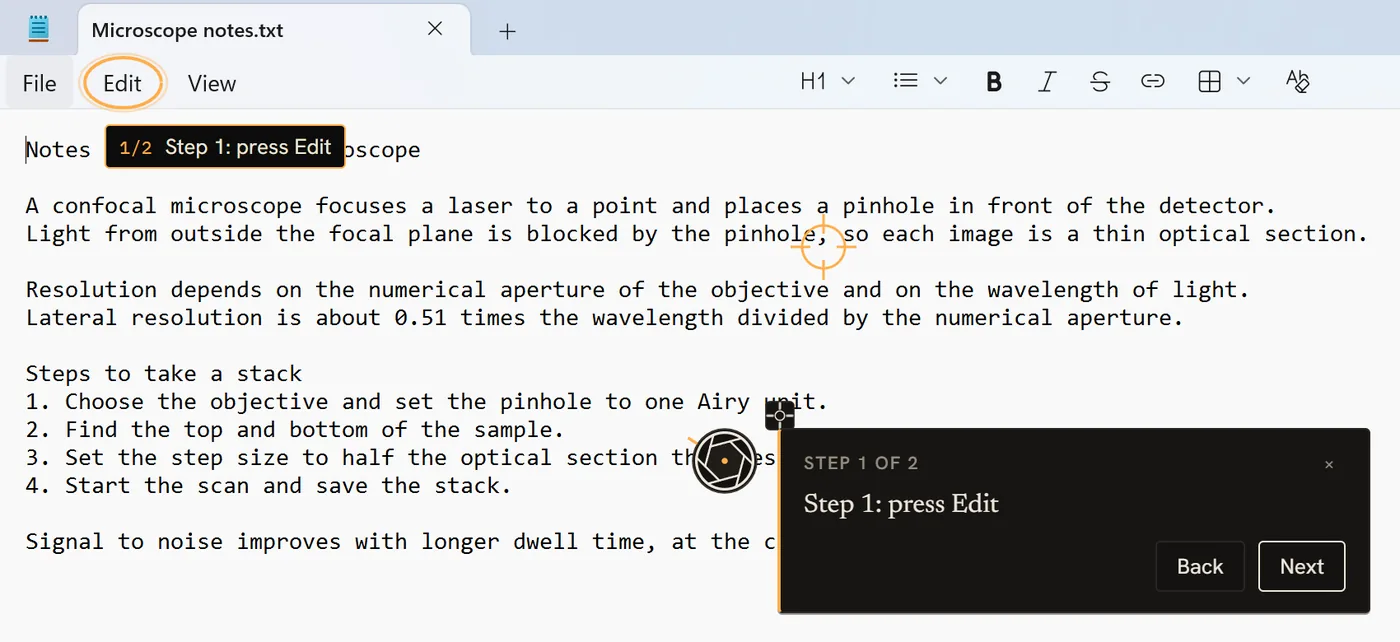
Ask how to do something and it rings the first button, reads the step aloud and waits for my click before it moves on. It knows where the button is because it reads the window, not because it guesses from a picture.
Drawing beside what I'm reading
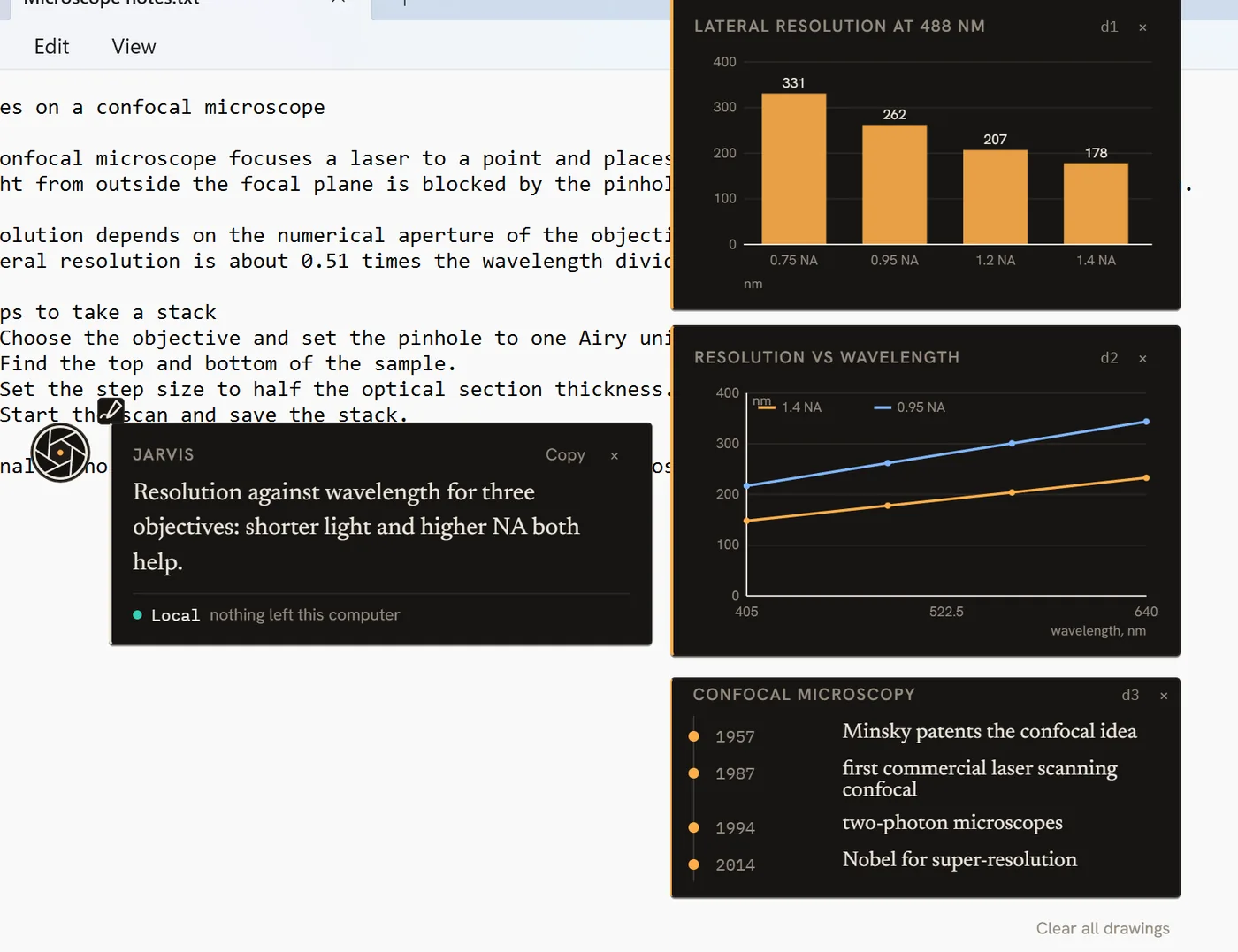
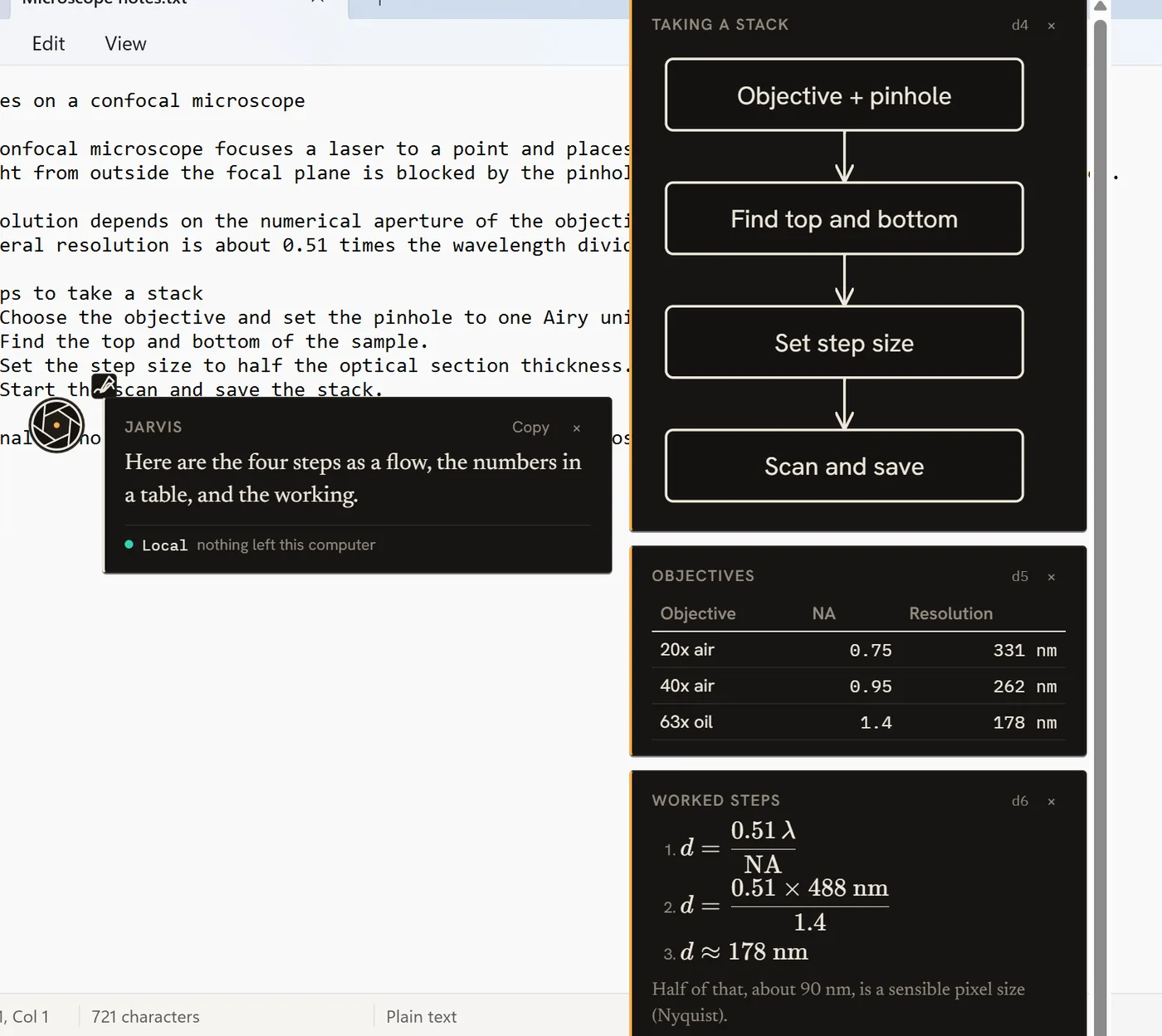
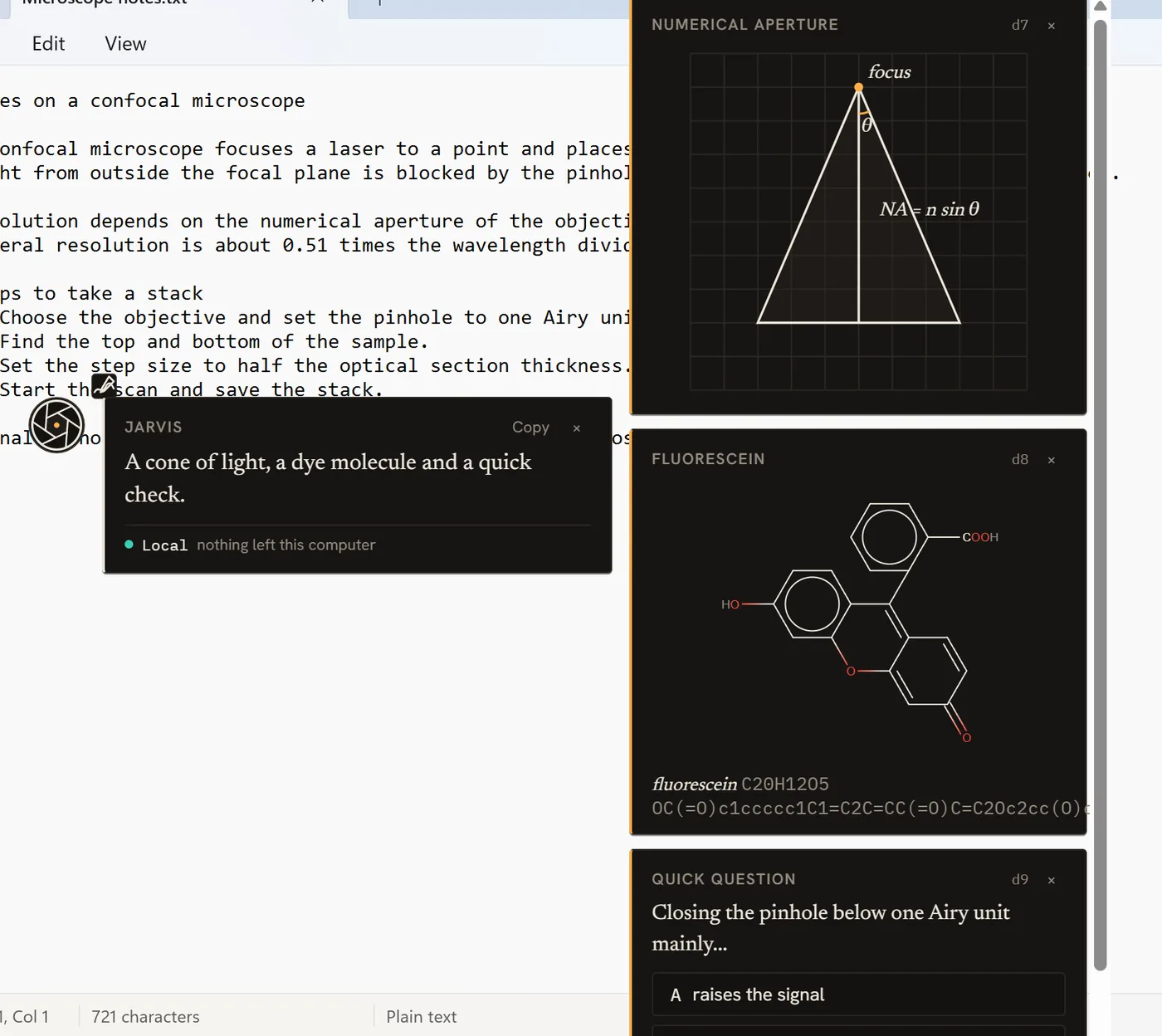
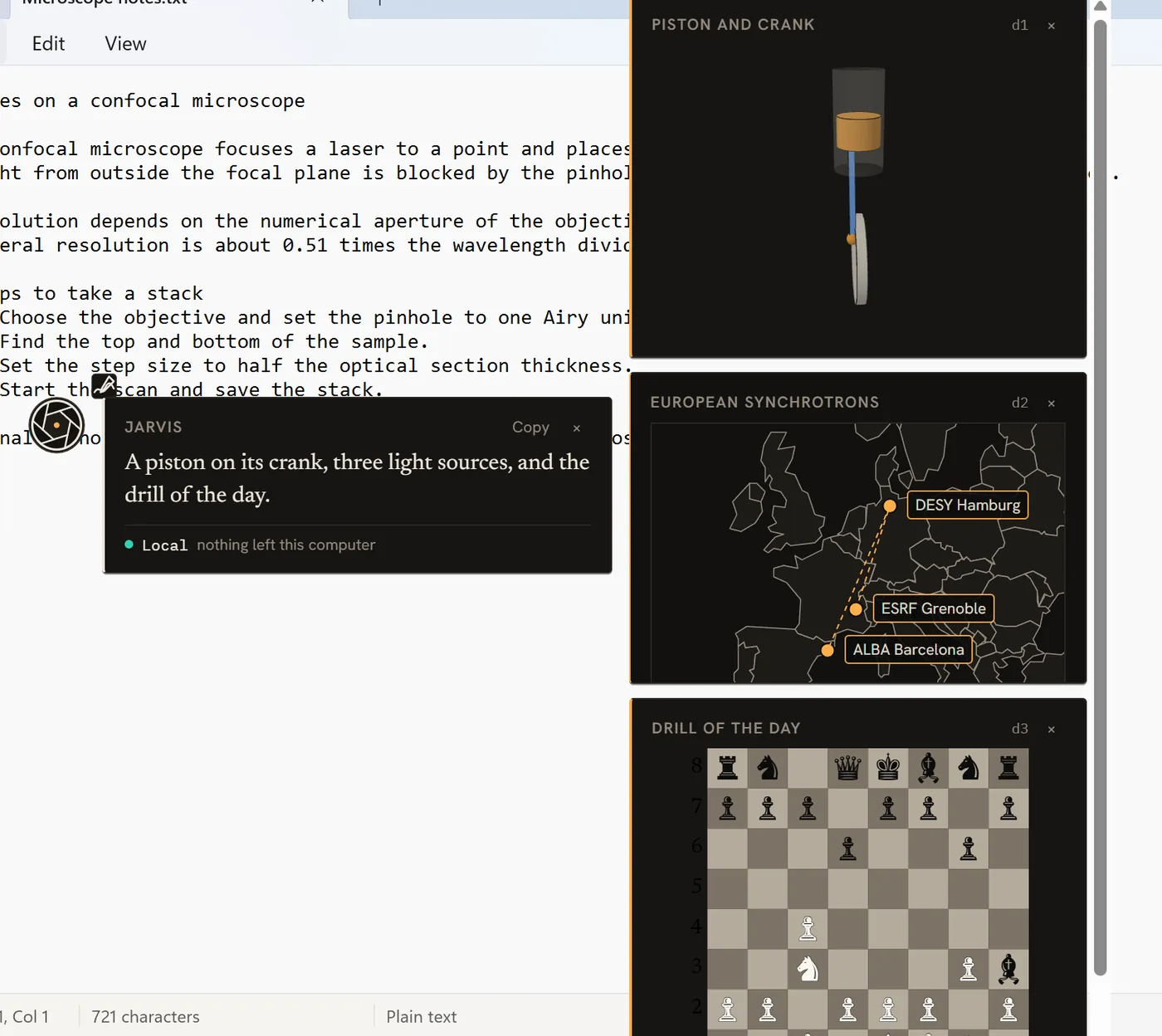
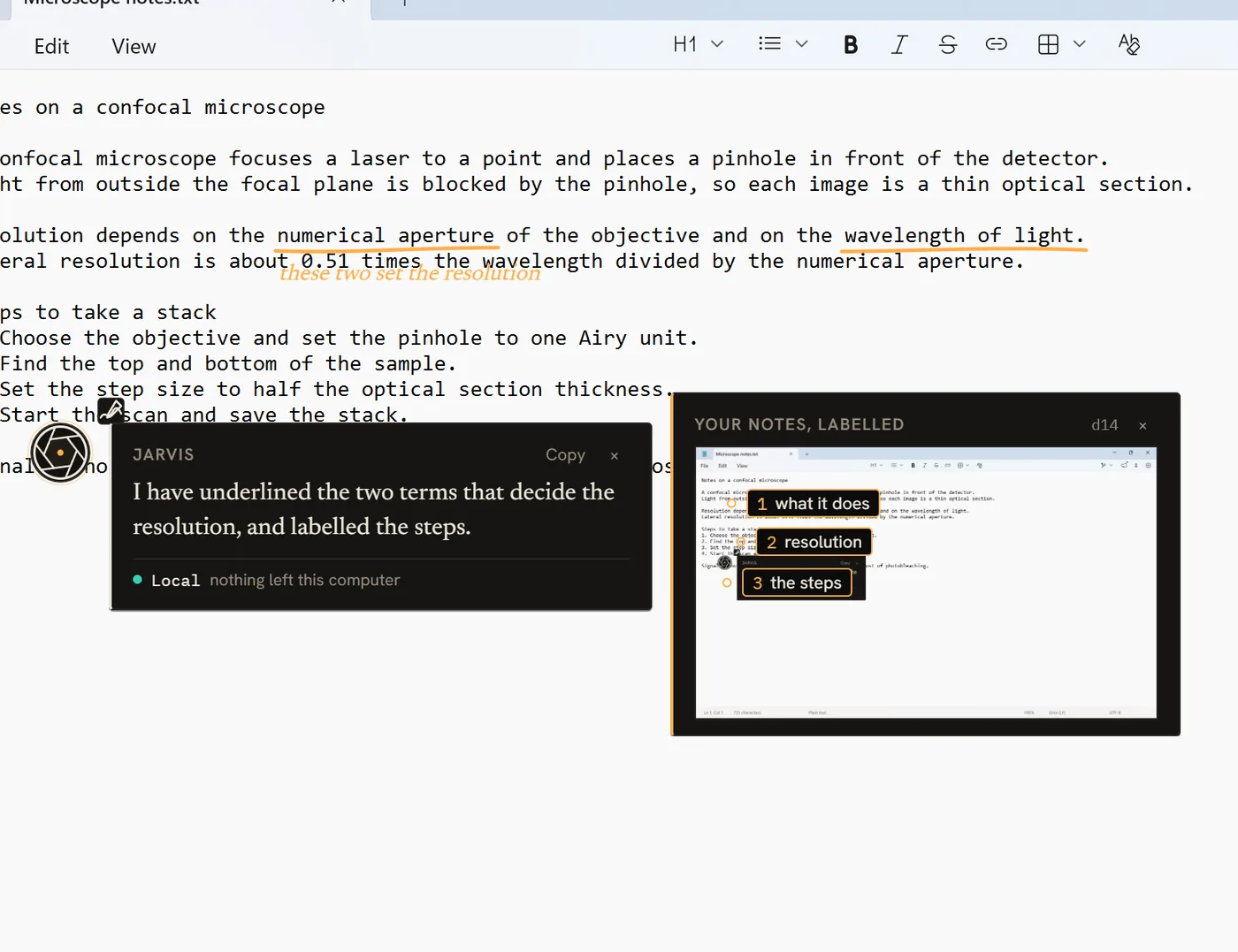
It has one drawing tool with many kinds of picture: bar and line charts, timelines, tables, flow charts, worked maths, geometry, molecules, small 3D models with moving parts, maps, quizzes and chess positions. It can also underline words on the screen itself. Each drawing gets a short name, like d3, so I can say "change d3" or "clear them".
Circle to ask
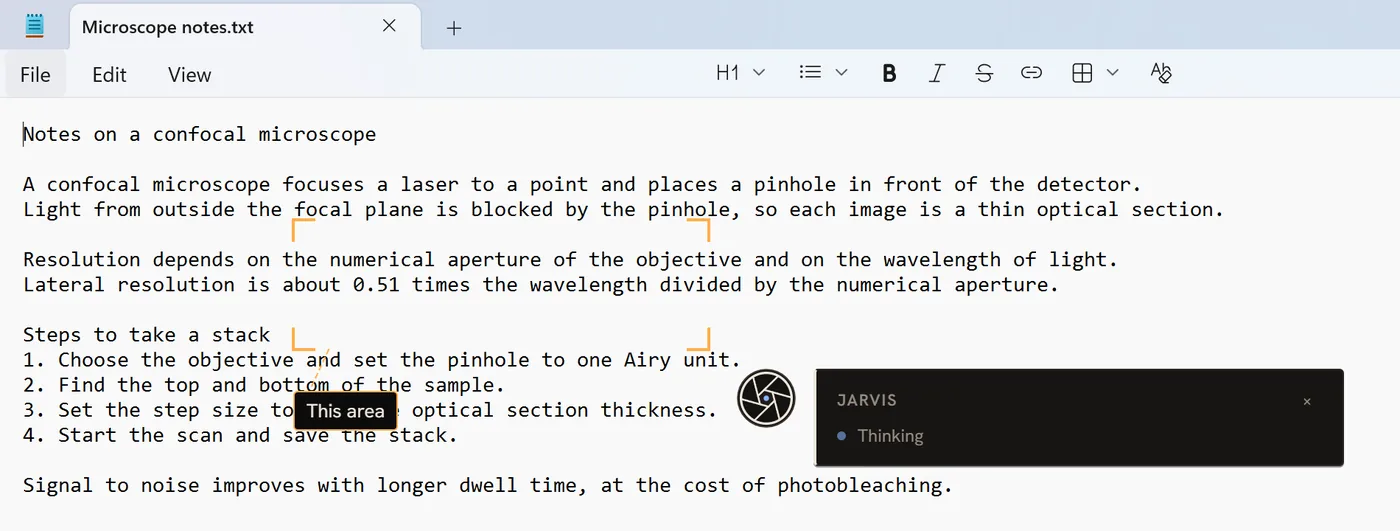
I hold one key, talk, and circle something with the mouse while I talk. It looks at that part of the screen and answers about it. Dragging a box and typing the question works too.
Reminders and memory
Reminders are set in plain words: "every weekday at 9", "every 2 hours", "friday 5pm", "in 1h 30m". It also remembers preferences and facts I mention. Everything it remembers is listed in its panel, and one click forgets it.
02 · The characters
Four characters, each with its own voice
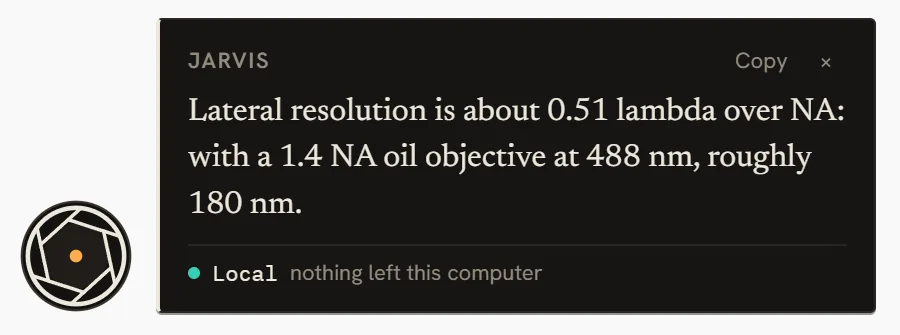
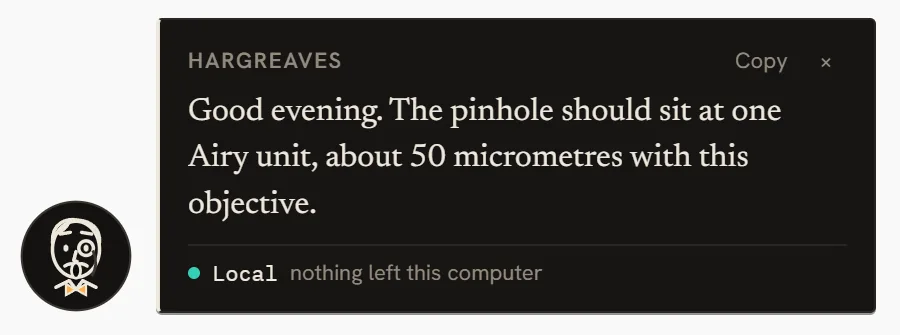
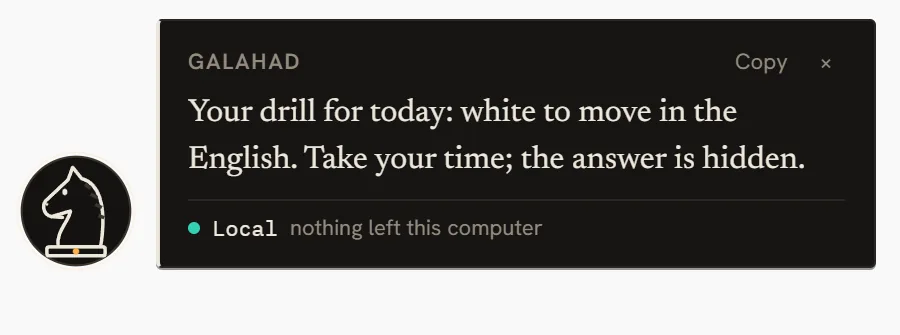
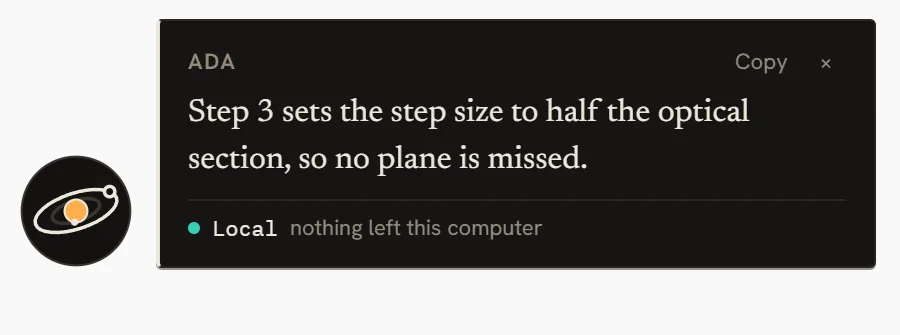
Jarvis is an optical aperture, Hargreaves a line-drawn butler with a monocle, Galahad a chess knight and Ada a small orrery. Each has a British voice and its own way of moving. They breathe when idle, open up while I talk, turn while they think, ripple while they speak and snap into focus when they point. With reduced motion switched on in Windows they keep still and only the colours change.

03 · How it works
A small app that reads the screen like a person would
- The app. Tauri, with the core in Rust and the interface in TypeScript. It installs for one user, needs no administrator rights and starts without a console window.
- Reading the screen. When I ask, it captures the window in front of me, reads its controls through Windows UI Automation (the names and positions of buttons, menus and fields) and runs Windows OCR on the picture for everything else. Each control and each line of text gets a short id, so when it points, it points at the real thing. On a test window it read 31 controls in about 0.1 seconds.
- The brains. A local model on the laptop answers by default, and then nothing leaves the machine. For hard questions, like a long derivation or a plan, a stronger cloud model can answer, only when I choose. Questions that mention passwords, banking, health or salary always stay local. Under every answer a small badge says which brain answered and what left the laptop.
- Voice. Speech recognition and the voice both run on the laptop. The voice downloads once, about 90 MB, and then works offline. The recording is deleted after use.
Safe by default
- Reading runs straight away. Anything that changes something first shows a card with "Allow" and "Not now". No answer in 60 seconds means no.
- Clicking, typing, opening apps, editing files and running commands are all off until I switch them on, and each one still asks.
- It never sends, shares, submits or deletes anything for me.
- A hands-off list keeps it out of password managers, banking and terminals.
- The companion and its panel are hidden from screen capture and screen sharing, so they don't show up in recordings or meetings.
- No analytics, no telemetry, no crash reports and no update check.

Tested
65 Rust tests cover the safety rules, memory, geometry and the tools, and 41 TypeScript tests cover the interface logic.
Rust · Tauri · TypeScript · Windows UI Automation · Windows OCR · KaTeX · local speech in and out
Status: a personal tool on my own laptop. Not released yet.